When running e-commerce in Chile, many orders do not come from your own website but from MercadoLibre. With separate backends for the website and the marketplace, inventory, orders, and shipping are viewed separately. KingCMS X1 includes a built-in MercadoLibre module that brings marketplace orders into the same backend and reports them separately by sales channel.
What scenarios is it suitable for
Common cases include: first, you have a MercadoLibre store and also use KingCMS for an independent site, and want to view orders in one list; second, the same product is sold on both sides and you need to match marketplace SKUs with website SKUs to avoid overselling; third, as shipping volume grows, you want to avoid manually copying shipping labels and inventory status between the two sides.
If you only sell on the marketplace and do not have an independent site, this module is not required.
Step 1: Enable the module and prepare app credentials
The module is disabled by default. When it is not enabled, no entry appears in the backend, and its routes and scheduled tasks do not take effect. After enabling MercadoLibre in “Module Management”, an entry appears under “Shop” in the sidebar.
Before connecting, create an app in the MercadoLibre developer backend, obtain the Client ID and Client Secret, and set the callback URL to the same address as the site. The backend settings page shows the callback URL actually used by this site; copy it over. If the two do not match, authorization will fail.
There are several other key settings on the settings page: select Chile (MLC) as the site; the number of recent days to sync is 1–30 days, default 7 days; the automatic sync interval must be no less than 5 minutes, default 30 minutes; scheduled automatic sync is disabled by default and must be turned on manually. It is recommended to first test with a shorter number of days, confirm that orders and amounts are correct, and then expand the range.
Step 2: Authorize the connection
Clicking “Connect MercadoLibre” redirects to the platform’s authorization page, and after confirmation you return to this site. Tokens are stored encrypted; the page only shows “Connected”, the seller account, and the expiration time, and never displays the plaintext. If there are less than 5 minutes until expiration, the token is refreshed before calling the API; on a 401, it refreshes once and retries.
There is a hard security restriction: authorization, callbacks, sync, push, and shipping labels only accept public https domains; localhost, intranet addresses, and bare IPs are always rejected. For local debugging, use an official domain with a reverse proxy.
Step 3: Sync orders and view accounts by channel
“Sync Orders” can be left blank to pull orders from the recent period, or filled with order numbers to sync only specific orders. After marketplace orders come in, their channel is recorded as MercadoLibre and they are kept separate from website orders: the backend order list can be filtered by channel, and sales statistics and exports also break down by channel.
Order numbers are fixed as ML- plus the marketplace order number. Repeated syncs are skipped and do not create a second order or overwrite amounts and products manually changed in the backend. Amounts are stored in cents as Chilean peso integers multiplied by 100, keeping the order total, line totals, shipping, and discounts reconciled. Statuses are mapped from marketplace statuses: pending payment, paid, partially refunded, refunded, and cancelled. For paid orders, logistics is also checked: shipped becomes “Shipped”, and delivered becomes “Completed”; status only moves forward and never rolls back.
Step 4: SKU mapping, shipping labels, and inventory push
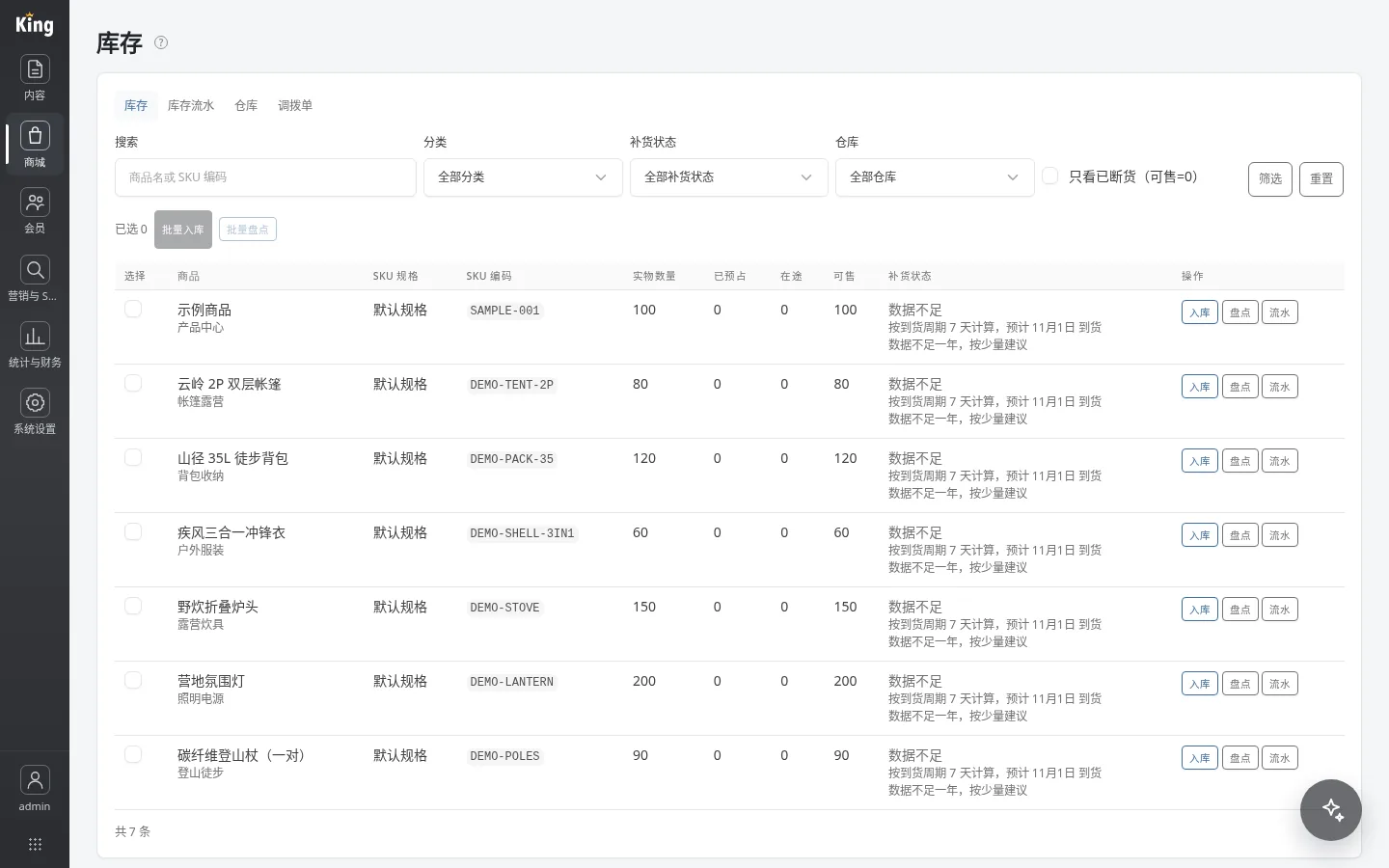
To sync inventory and prices, first match marketplace products with website SKUs on the SKU mapping page. You can add them one by one or use CSV for batch import and export. Unmapped marketplace products appear in an unmapped report and disappear automatically after mapping.
Shipping labels are downloaded directly from the order; links are short-term signed and valid for 1 hour by default. Inventory and price pushes are disabled by default. Once enabled, both the manual button and scheduled tasks push according to the mapping and will not push products that are not mapped.
Notes
First, marketplace orders are imported orders and cannot go through the site’s payment flow; payment and refunds are still completed on the MercadoLibre side. Second, automatic sync is disabled by default; remember to set the interval according to your order volume and turn it on. Third, if marketplace products are not mapped, inventory push will not take effect; add the mappings first and then enable pushes. Fourth, when the same product is sold on both sides, decide in advance which side’s inventory is authoritative to avoid overselling.
Summary
The MercadoLibre module is not about “adding one more sales channel”; it is about “keeping the books straight after you have more channels”: orders go into the same backend, are counted by channel, SKUs are matched, and shipping labels and inventory status no longer need to be moved manually. For teams running both an independent site and a Latin American marketplace store, this saves the most tedious part of the daily work.