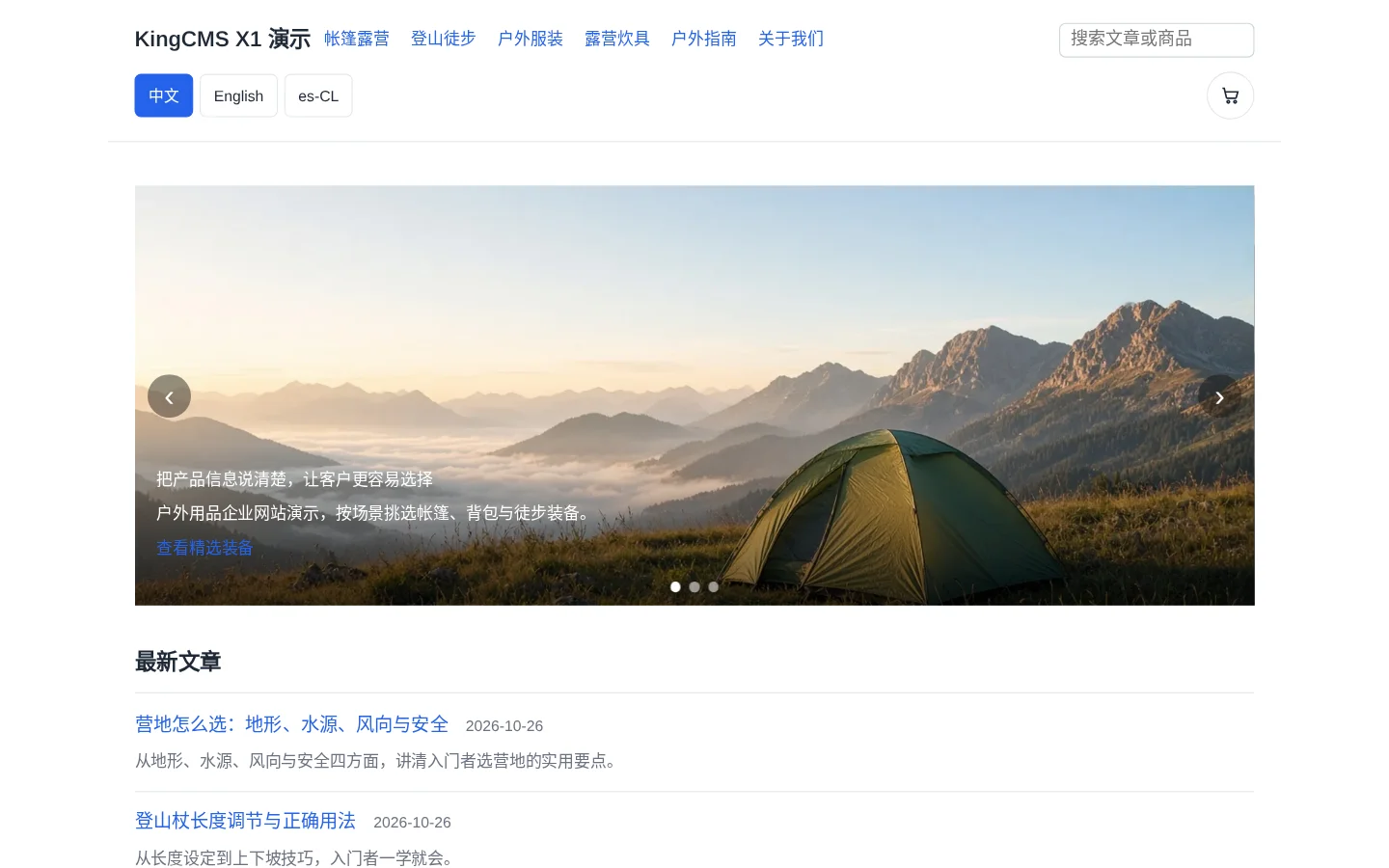
Installing KingCMS X1 with the BaoTa panel is mostly the same as setting up an ordinary site; however, a few default panel settings can break X1 outright, and the symptoms are quite misleading: the homepage opens and the admin area is accessible, but the front end is completely unstyled. Below is a list in the order of “most likely to trip you up after installation.”
1. Run Directory and Cross-Site Protection
Set the website directory to the site root, and select public as the run directory; do not select the site root or x1/. Also, BaoTa enables “cross-site attack protection” by default, which writes .user.ini in the site root and restricts the paths PHP can access to public/. However, X1’s database, app.key, and uploaded files are all under data/ in the site root; once restricted, it will report that the directory is not writable, SQLite cannot be opened, and images return 404.
There are two ways to handle this: turn off cross-site protection; or widen open_basedir to the site root. Restart PHP-FPM after making the change. Then confirm that data/ and public/img/ are owned by the web user (usually www on BaoTa).
2. PHP 8.4 and Extensions
X1 requires PHP 8.4 as the minimum and does not support lower versions. Install 8.4 from the panel’s “Software Store” and confirm these extensions are present: pdo_sqlite, sqlite3, sodium, mbstring, intl, gd, curl, and zip. Without sodium, encrypted settings cannot be saved; without gd, thumbnail generation will fail. Remember to restart PHP-FPM after installing the extensions.
3. The Two Suffix Cache Regexes (Most Common)
When BaoTa creates a new site, it adds two regexes at the end of the vhost, treating .css, .js, and image suffixes directly as static files. The problem is that X1 has two kinds of resources that are dynamically output by PHP and do not exist on disk: the theme resource /n/<主题>/theme.css and /favicon.ico. As a result, nginx cannot find the files and returns 404, and the front-end styles are completely lost.
The fix is not to delete these two rules, but to narrow them to the actual static directory /assets/. For example, change location ~ .*\.(js|css)?$ to location ~ ^/assets/.*\.(js|css)$, and add the ^/assets/ prefix to the image rule as well. After making the changes, run nginx -t and then reload.
4. /media/ and Upload Limits
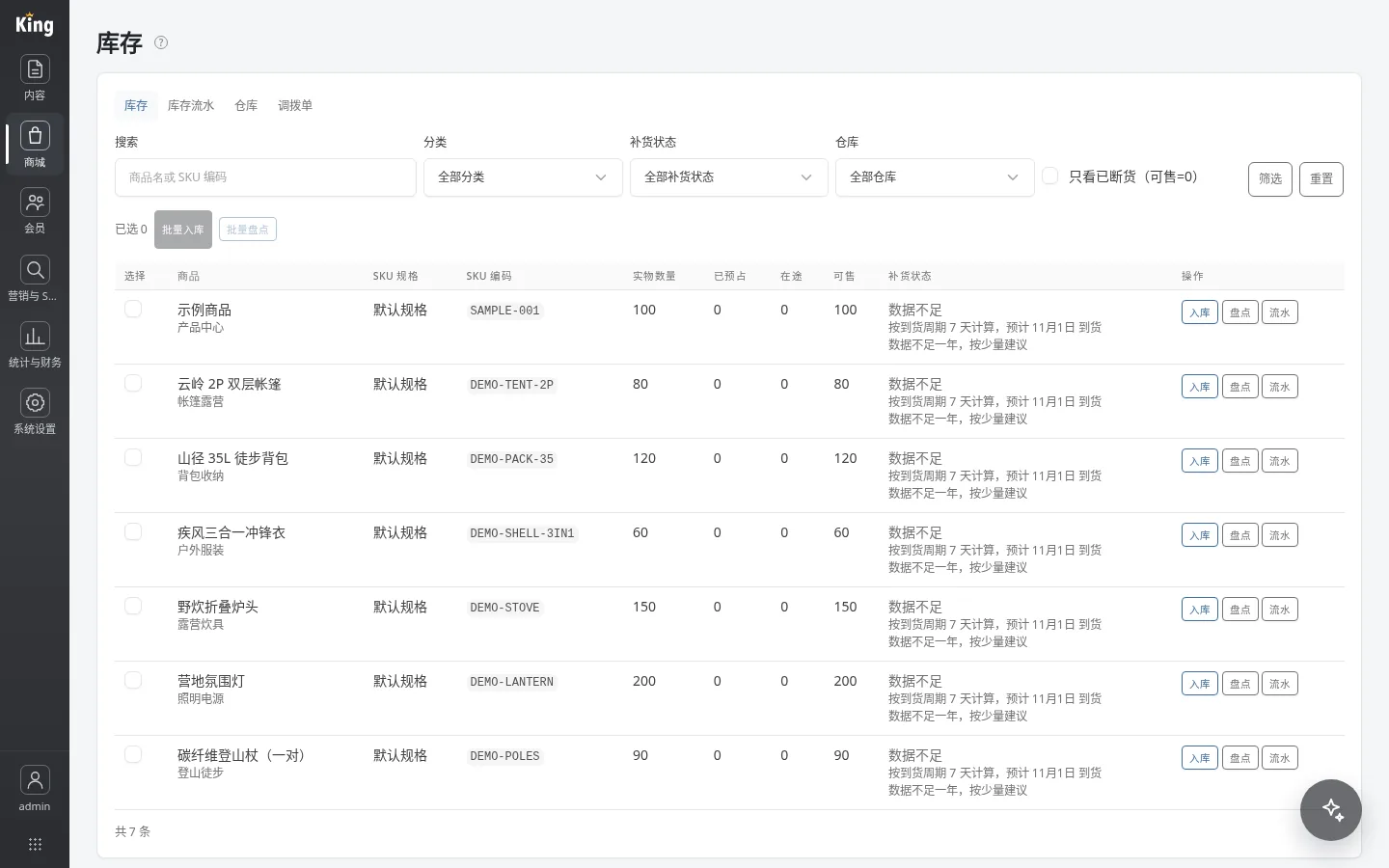
Uploaded files are stored in data/uploads/, not under public/, so you need to configure an alias for /media/ in nginx pointing to it, and disable PHP execution in that directory. In addition, public/img/ must be writable because the thumbnail cache is written there. Align the upload limits in two places: PHP’s upload_max_filesize and post_max_size, and nginx’s client_max_body_size. It is recommended to set all of them to 20M; otherwise, uploading large images from the admin area will fail.
5. Pseudo-Static and Post-Install Self-Check
For pseudo-static, prefer selecting the KingCMS rule in the panel’s “Website → Settings → Pseudo-Static”; do not hand-write the entire vhost. Then go to the admin area’s “Settings → Basic Information → URL Format” and select pseudo-static; when saving, it will automatically detect whether rewriting is in effect. Finally, run a self-check:
cd /www/wwwroot/example.com
/www/server/php/84/bin/php bin/kingcms check:web
It checks the homepage, theme CSS, /healthz, /media/, URL format, directory writability, and PHP extensions item by item, and failed items will directly indicate the corresponding configuration location.
Summary
The key to installing X1 on BaoTa comes down to three things: point the run directory to public, open up data/ for PHP, and narrow the two suffix regexes to /assets/. Everything else can follow normal panel operations; after installation, run check:web once—it is much less trouble than troubleshooting after going live.