You've added products to your store, but they don't show up in Google Search or the Shopping tab. The problem is usually not the products themselves but the product feed: Google needs a structured list containing price, availability, GTIN, images, and shipping, and it won't display products if the format is wrong. The Google Shopping module in X1 generates this feed.
1. Run the product check first
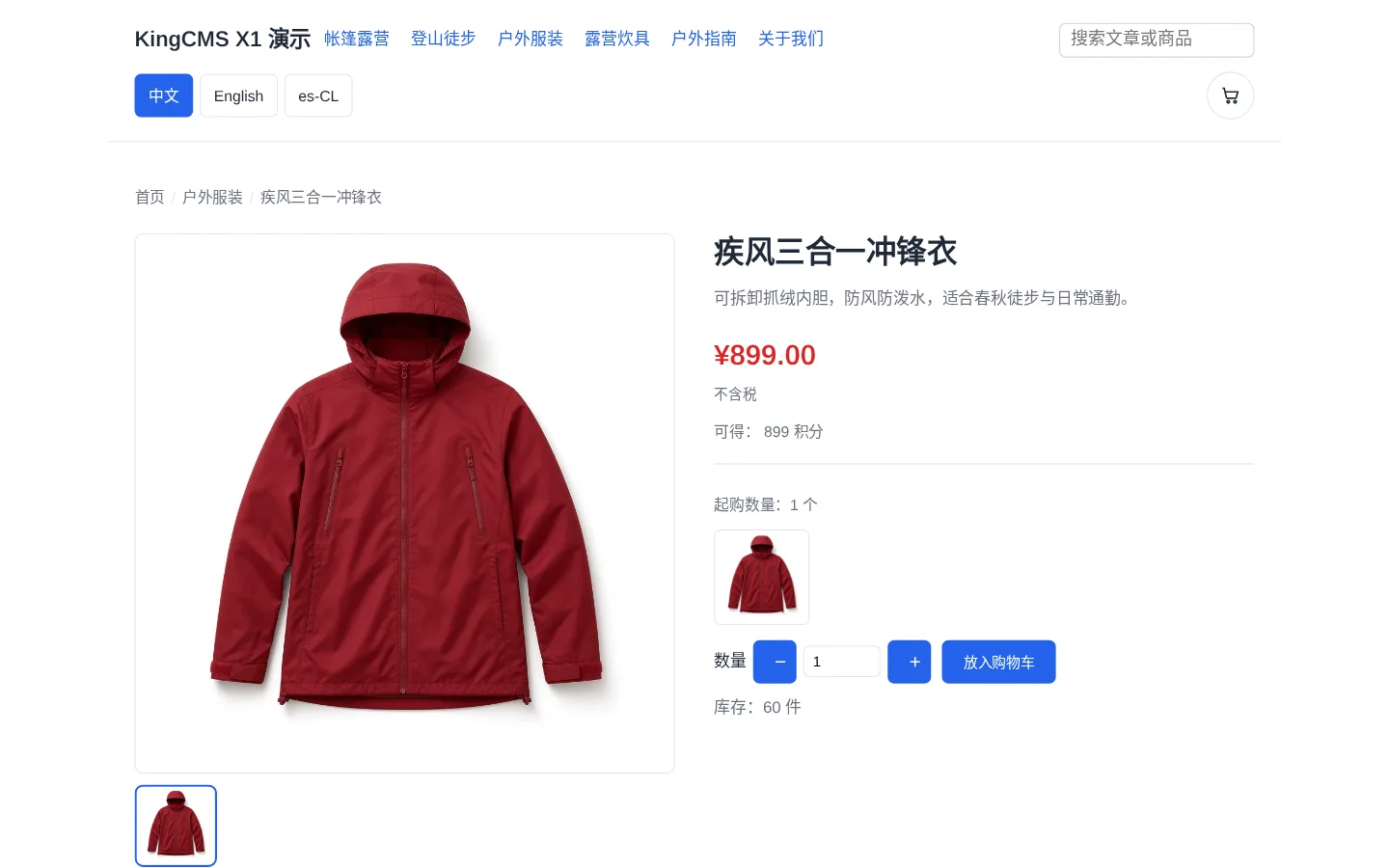
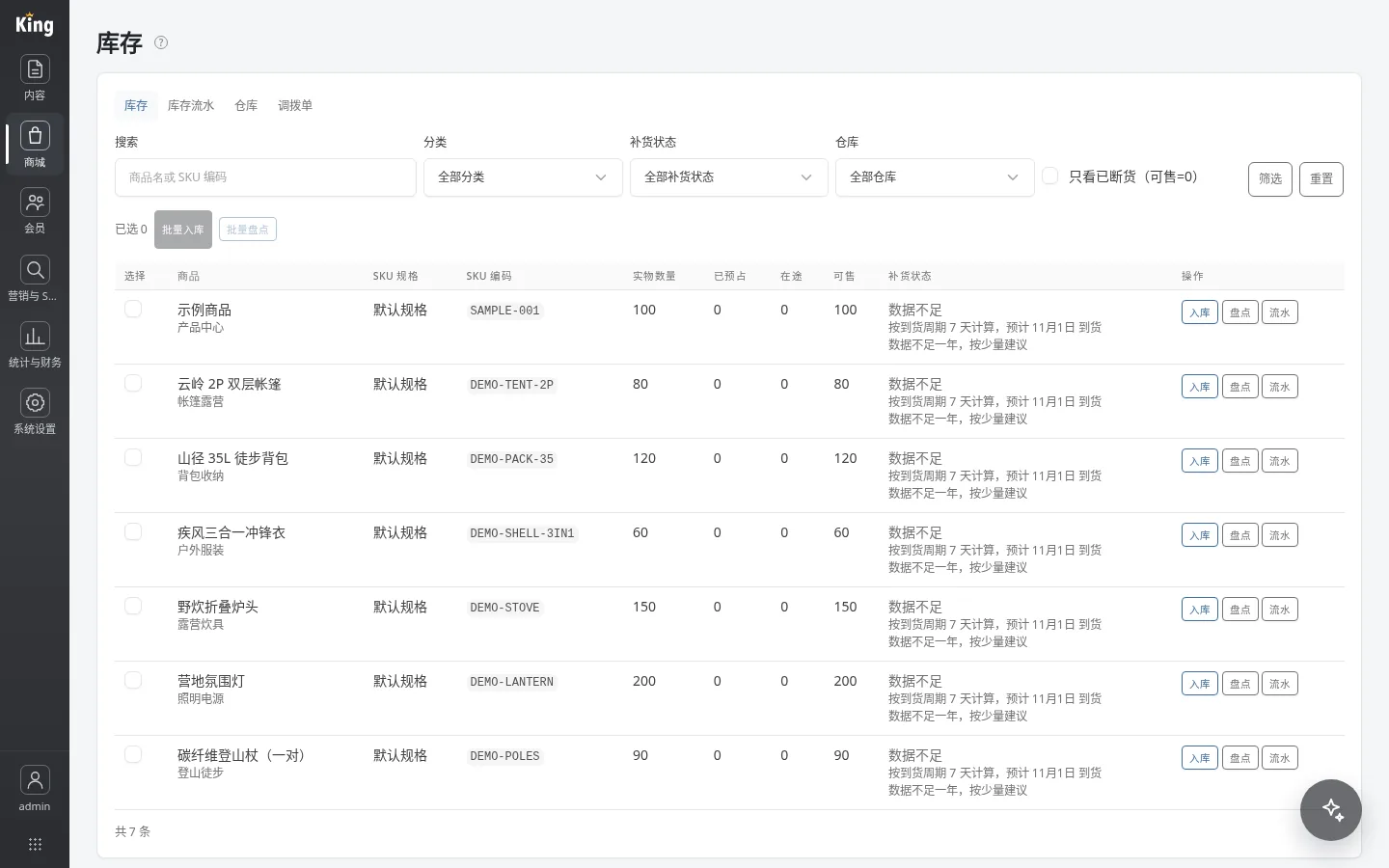
Once enabled, Google Product Feed appears under Marketing and SEO on the left (/admin/google-shopping) and has three pages: Product Feed, Account, and Settings. The Product Feed page contains a Product checks table that lists missing or non-compliant items for published products one by one. These are only warnings; they do not affect saving, but they do affect whether Google displays the product.
The eight most common warnings and how to handle them:
| Warning | What to do |
|---|---|
| Missing brand | Enter Brand on the product edit page |
| Missing GTIN and no MPN | Enter a barcode, or enter the MPN under Model |
| Barcode is not a valid GTIN | The barcode must be 8/12/13/14 digits with a valid check digit; otherwise use the MPN |
| Title exceeds 150 characters | Shorten the title |
| Missing product description | Fill in the SEO description, short description, or details |
| Missing main product image | Upload an image or set a cover image |
| No enabled SKU | Enable at least one SKU in the variants |
| Price is 0 | Set a valid price |
The product edit page also lets you enter a Google product category, output as google_product_category.
2. Fill in the six settings correctly
- Merchant Center ID: Numeric account ID; required for push mode and connection testing.
- Sync mode: Fetch (Merchant Center periodically crawls the feed) or Push (actively submit via the Merchant API).
- Target country: Two-letter code such as
CNorUS; affects the shipping region in the feed and structured data. - Currency: Three-letter ISO code such as
CNYorUSD; prices are output in this currency—getting it wrong means every price is wrong. - Default shipping: Enter in the selected currency, e.g.
12.50;0means free shipping; if country is blank, shipping is not output. - Product condition / return days / tax note: Defaults for new products that do not have individual settings; return days can be omitted or set to 7, 15, or 30 days.
3. Fetch mode: let Merchant Center crawl it
After selecting Fetch, copy the feed URL, which looks like https://your-domain/feeds/google-shopping.xml, and add it in Merchant Center as a scheduled fetch. The file is generated by a cron job and checked every hour; the page shows the last generated time. If it has not updated for more than 24 hours, a prompt asks you to check the cron job. Multilingual sites can specify a language with ?lang=en; if the file does not exist, it falls back to the default language.
4. Push mode: the site submits actively
Select Push and enter the Merchant Center ID. On the Account page, upload the Google Cloud service account JSON (≤64KB), then click Test connection to confirm it can exchange a token and read account information. The page only shows Configured / Not configured and never displays the key.
Product publish, unpublish, and delete actions enter the push queue, and a cron job calls the Merchant API in batches via the CLI—web requests never call Google directly. Repush all only adds items to the queue; it does not send them immediately. The page shows pending pushes, failed jobs, succeeded/failed entries, recent errors, and push logs.
5. Common pitfalls
- Product feed 404: the file has not been generated or
cron:runhas not run; first check the last generated time and the failure reason. - Merchant Center is not updating: in Fetch mode, check that the URL matches exactly and verify country and currency; in Push mode, check the mode, ID, key status, and cron job.
- Key upload fails: confirm it is a service account JSON and ≤64KB; if the connection test fails, check the key permissions and ID.
- If a product has warnings, will it not be output? No, it will still be output, but it is best to resolve each warning.
- Wrong currency: prices are output in the wrong currency, and Google may reject the item outright.
Summary
The key to Google Shopping is two things: whether product data is complete (brand, GTIN/MPN, description, image, SKU, price) and whether the sync pipeline works (for Fetch, check that the cron job generates the file; for Push, check the queue and key). Clear all Product check warnings first, then choose one sync mode—usually you'll get through on the first attempt.