Orders, payments, and refunds are all normal, yet month-end reconciliation shows a discrepancy—this is the most common issue after enabling the Finance module. The discrepancy itself is not scary; what is scary is not knowing from which day or which transaction to start checking. The "Reconciliation" tab in X1 is built for this scenario.
1. First confirm that the Finance module is enabled
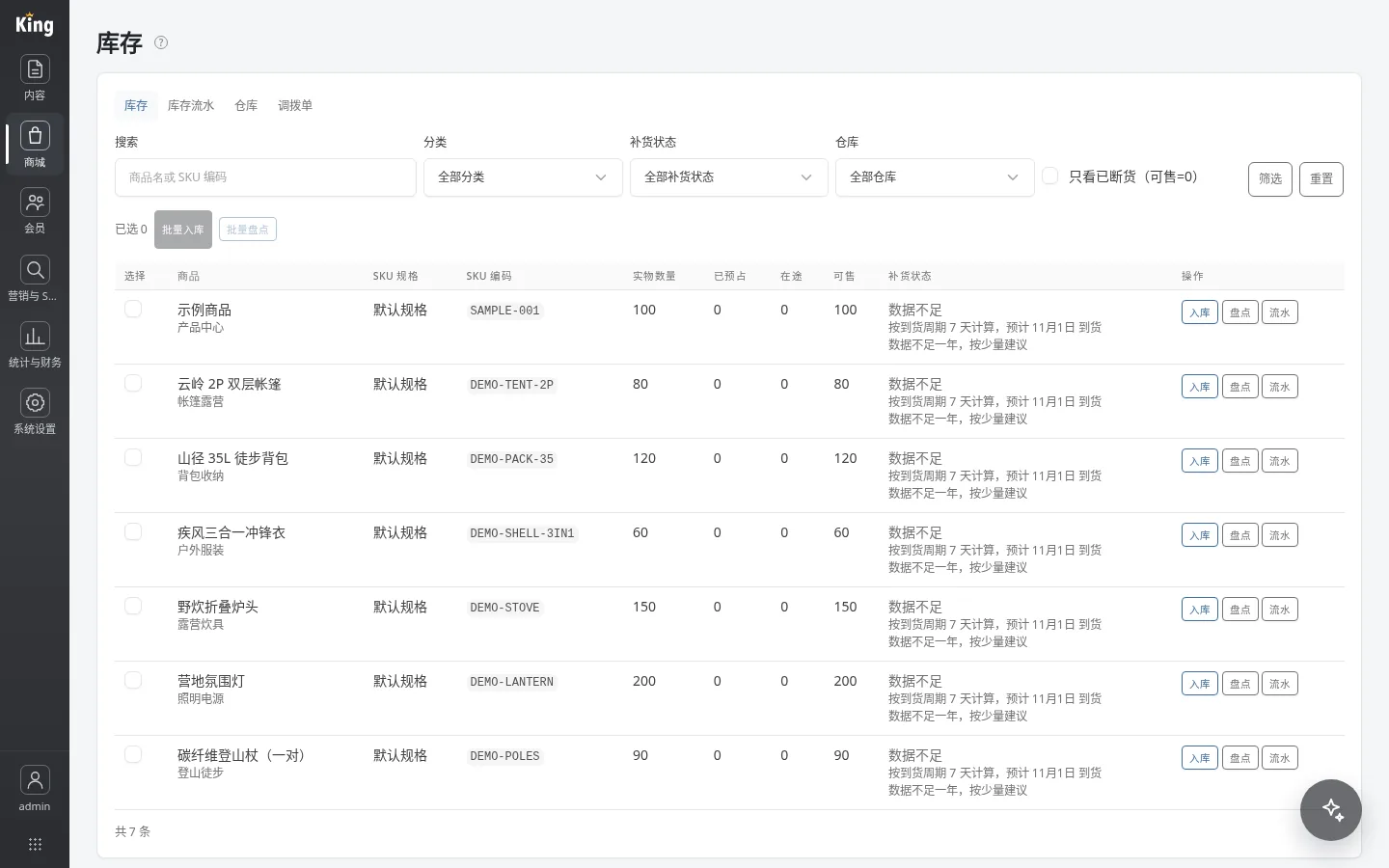
The Finance module depends on the Products module and is disabled by default. Go to "System Settings → Modules & Themes → Module Management", check "Finance", and save. Only then will "Finance" (/admin/finance) appear under the "Statistics & Finance" group on the left. After it is enabled, successful payments, refunds, balance top-ups/adjustments, purchase receipts, and purchase payments will be recorded automatically; payments made before it was enabled will not be backfilled. This is the first easily misjudged source of discrepancies.
2. What to look at on the reconciliation page
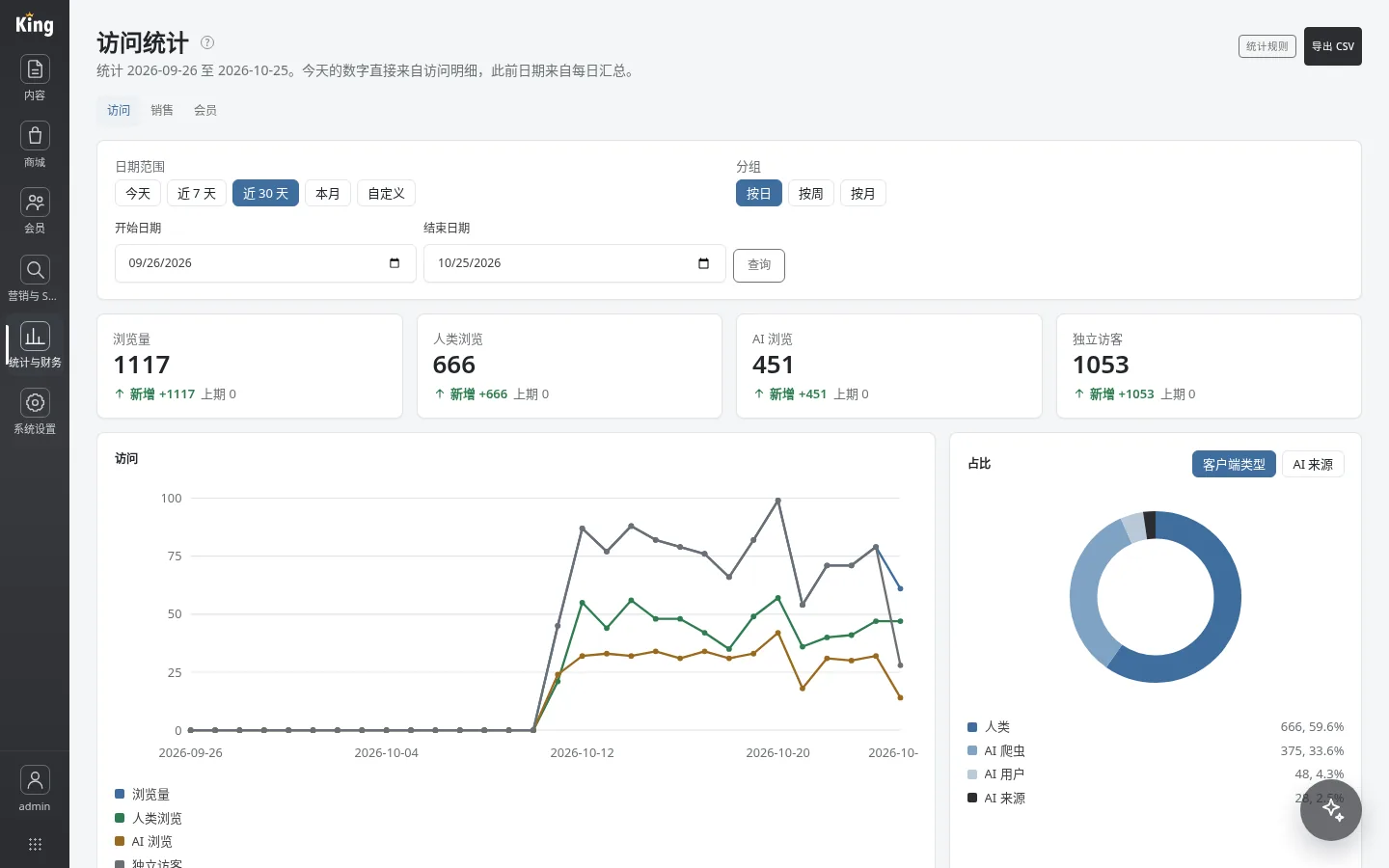
The "Finance" page has three tabs: "Finance", "Reconciliation", and "Customer Transactions". Reconciliation checks the most recent 30 days by default; you can change the start and end dates, up to 366 days at a time. The table lists four items by day: total successful payments, ledger sales revenue, total paid orders, and discrepancy. Dates where all three totals match are marked "Consistent"; those that do not match are marked "Inconsistent", with the ledger difference and order difference listed separately. The top of the page shows the number of inconsistent days.
The default 30 days covers only recent activity; to check last month, change the dates manually; a single query can cover at most 366 days. Reconciliation is only responsible for finding differences and will not automatically modify orders, payment records, or transactions. After finding a discrepancy, you need to go back by date and check orders, payment records, and financial transactions one by one.
3. Common sources of discrepancies
- There are manual "Adjustment" transactions on that day, with no corresponding documents on the order side;
- Cross-day settlement: successful payment and order status change occur on different days;
- Refunds: a successful refund is recorded as a "Refund" expense, but a refund for a balance payment is returned to the balance with no cash outflow and is not recorded as an expense;
- Purchase receipts: only cash on delivery is recorded as an "Expense" at receipt; credit purchases are recorded as "Accounts Payable"; prepayments were already recorded as "Purchase Prepayment" when the payment was registered, and are not recorded again at receipt;
- Payments made before the Finance module was enabled have no transactions, so reconciliation naturally does not match.
Repeated triggers of the same payment, refund, top-up, or receipt will not create duplicate entries, so "duplicate transactions" are usually not generated automatically by the system; check manual bookkeeping first. To locate the issue, first filter out dates marked "Inconsistent", then look at the transaction types on that day; usually you can narrow it down to a specific transaction.
4. Credit sales and customer transactions
After the Finance module is enabled, unpaid orders can be "Marked as Credit": the order becomes paid, inventory is deducted according to the order, and an "Accounts Receivable" entry is recorded at the same time. Note that "Accounts Receivable" is only a receivable on account, not cash income, and is not included in the income card at the top of the "Finance" tab; only after the customer pays and you register a "Receipt" will "Accounts Receivable Receipt" be recorded and included in income. Receipts can be made in multiple installments, and the amount cannot exceed the outstanding amount.
"Customer Transactions" summarizes receivables, received amounts, and outstanding amounts by customer, and marks overdue orders as "Overdue"; customers are grouped by member, and guest customers are grouped by the phone number used when placing the order. Credit limits and payment terms are set under "Advanced" in the member details; the limit is only a warning and does not block, and the due date is only for display—the system will not automatically send collection reminders.
5. Boundaries of manual bookkeeping
In the "Finance" tab, "Record an Entry" only allows "Expense" or "Adjustment" (for Adjustment, then choose income/expense). The amount is entered in the site currency's main unit and saved as integer cents; the note is required. The date of a manual transaction is fixed to the current day and cannot be backdated to another date; historical backfilling must be generated by actual business documents.
Summary
For reconciliation discrepancies, first check three things: whether the Finance module was enabled before the corresponding date, whether there were manual adjustments on that day, and whether refunds and purchases followed paths that do not record cash flow. The reconciliation page only points out which day does not match; checking transaction by transaction still requires going back to orders and transactions. Once you establish these three steps, month-end reconciliation will be much faster.