Multilingual support is not just about adding a language code. Frontend switching, content translation, UI strings, and the glossary are all separate, and the easiest thing to confuse is what “one-click translation” and “autocomplete” actually handle. This article explains it clearly based on the actual admin workflow.
I. Enabling Languages and Frontend Switching
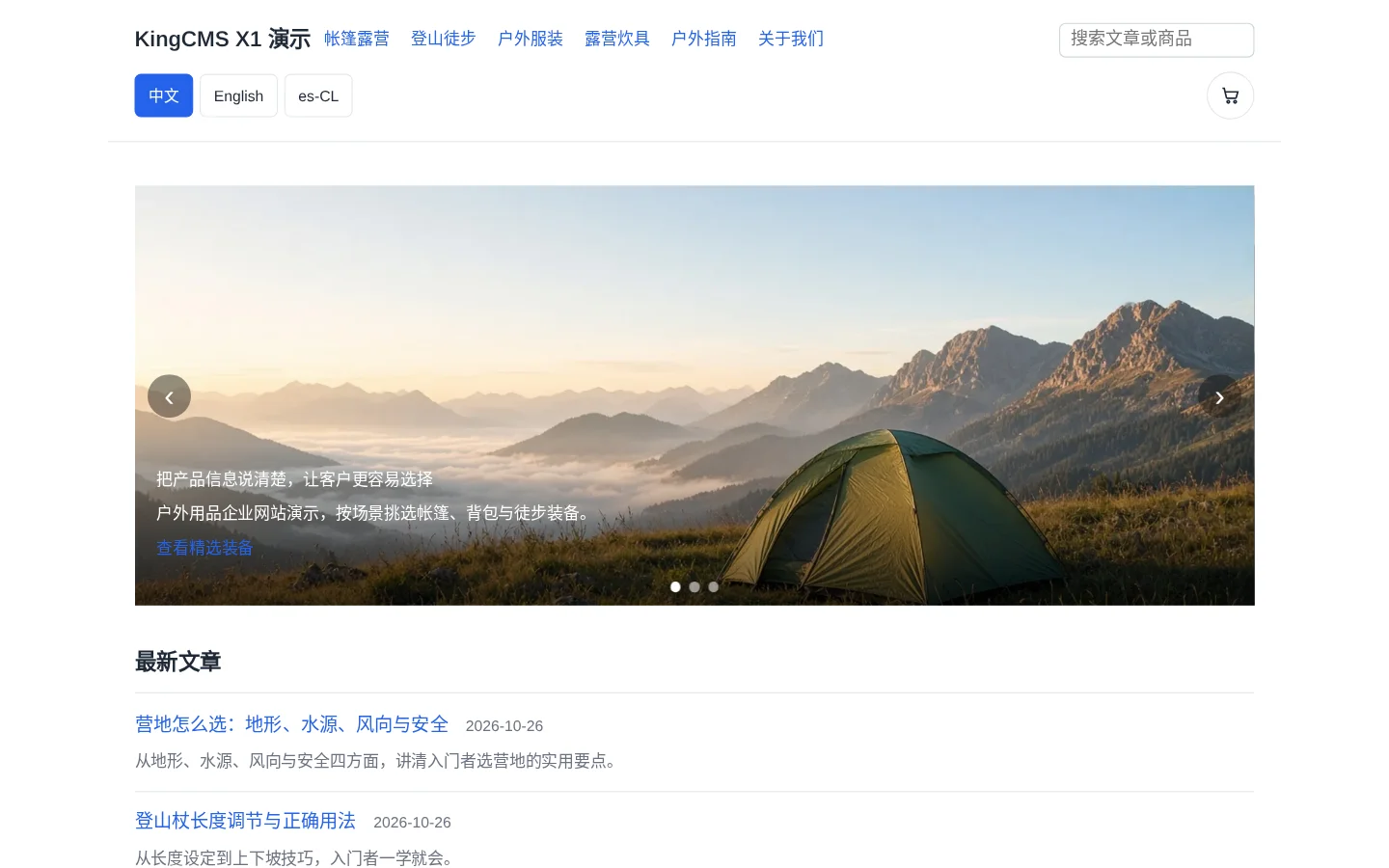
In “Settings → Content & Media → Multilingual” (/admin/settings/content/i18n), fill in “Enabled Languages”, separated by English commas, for example zh-CN,en,ja. It must include zh-CN, otherwise it cannot be saved; codes start with 2–3 letters and may have a region suffix; duplicates are automatically removed. When only one language is enabled, the frontend does not display the switch button.
The switch form submits to POST /locale, sets a kc_lang cookie valid for one year, and redirects back to the current page without changing the path. Language is determined in this order: ?lang= in the URL, cookie, default language. The system does not read the browser’s Accept-Language, so the first visit displays Chinese by default; to open an English page directly, use /about?lang=en, which also refreshes the cookie.
II. Which Fields Can Be Translated
| Content | Translatable Fields |
|---|---|
| Article | Title, summary, body, SEO title, SEO description |
| Category | Name, SEO title, SEO description |
| Single Page | Name, body, SEO title, SEO description |
Path names and SEO keywords are not translated; all languages share the same URL. Translations are written only when the main form is saved; if you leave without saving, they are not retained; clearing a translation and saving deletes that field’s translation, and the frontend falls back to the original Chinese text.
III. Boundaries of One-Click Translation
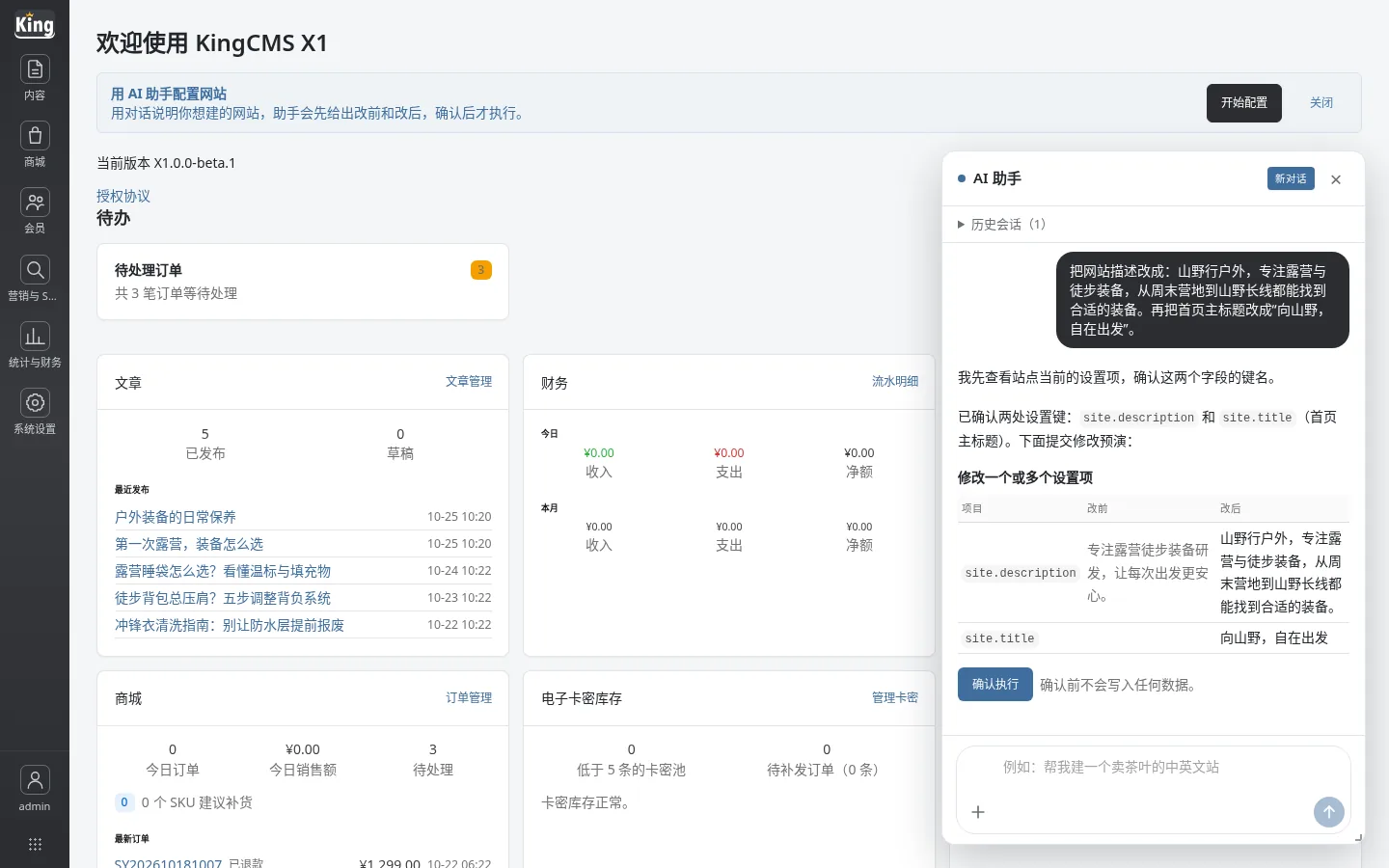
- First fill in the Chinese content and save it, then click “Translate”; the system sends the Chinese text to the AI in one request and translates it into all enabled foreign languages simultaneously;
- It will overwrite the current content in the translation area, including manually edited translations;
- The translation result is not saved automatically; you must click “Save” again;
- Body translations are sanitized according to the body content rules;
- If the original Chinese text has changed since the last translation save, “Chinese modified” is displayed next to it, and when saving, the current content of the input box is used;
- If no AI service is configured or the call fails, only an error is shown, and existing content is not cleared.
Site name and share title/description also have per-language translation areas, but the “One-click translation” there translates only the current language and fills only empty translations, without overwriting existing content. The default META has only one copy and is not language-specific.
IV. “Update Translation” and “Autocomplete” Are Not the Same Thing
When saving an article, checking “Update Translation” generates translation tasks for all enabled languages; only fields with content are translated, and empty fields do not generate translations. However, the “Autocomplete Translation” switch on the “Languages and Countries” page only controls system UI strings and help, and does not affect published content—this is the most common misunderstanding.
V. Fallback, UI Strings, and Glossary
Fields without translations automatically display the original Chinese text; this is a per-field fallback, not a whole-page fallback. Fixed frontend text such as navigation and buttons is maintained in “UI Strings” (/admin/ui-strings); clicking “Translate” fills only empty cells. Fixed translations for proper nouns go in the “Translation Glossary” (/admin/glossary); within the same language, the original Chinese term cannot be duplicated, and AI translation prioritizes glossary translations.
VI. Common Pitfalls
- You switched languages but the content did not change: first check whether that field has a translation; if it lacks one, it falls back to Chinese;
- After translating and refreshing it turns back to Chinese: the translation result was not saved;
- You changed the Chinese but the translation did not change: check the “Chinese modified” marker, then re-translate or edit manually;
- If you disable a language, are its translations lost? No, they are still there after re-enabling it;
- You want to use “Autocomplete” to translate articles: that does not work; that switch only controls the UI and help.
Summary
Multilingual support should be understood by its parts: the language switch determines whether the frontend can switch, the translation area determines what content is displayed, the AI service determines whether one-click translation can be used, and the glossary determines how proper nouns are translated. Keeping “content translation” and “UI autocomplete” separate will basically keep you out of trouble.